
Get Started with Ting Internet
Ready to ditch the slow lane? 🚗
Don't worry, there's no speeding tickets for how fast you'll be going.
From creating your order to selecting your router, getting Ting Internet is fast and exciting. Start your engines and get ready to let slow internet byte the dust.
Place your order and schedule installation
No seatbelts needed here, you're in for a smooth ride while you place your order for Ting service. Build your Internet plan, including add-ons, create your Ting account and schedule your installation. Before you know it, you'll be off to the races.
1. Check availability
Head over to Ting.com and enter your address. Click Check availability.
- If your address is ready for service: Click on a plan to start building your order.
- If we’re not quite there yet: Join the Ting Waitlist. We’ll keep you in the loop.
2. Choose your internet plan and Wi-Fi solution
Select your monthly Internet Plan and your router preference.
- Looking to rent a router? Select Whole Home Wi-Fi.
- Bringing your own router or have a Ting eero already? Select Use my device.
3. Property info and installation preferences
Add your property and ownership details.
- Renting? We'll need to get your landlords contact info and permission.
- Have utilities we should know about? Check them off in the list.
4. Installation preference
Tell us where you want the fiber entry point to be.
- This is the point where the fiber will enter your home.
- We'll do our best to follow your preference, but may need to adjust for safety or accessibility.
5. Create your Ting account
Enter your account details and add your payment information.
- Use the information for the account holder.
- You can choose to pay by credit card or Bank Account (ACH).
6. Review your order
Double-check that everything looks right before placing your order.
- Agree to Ting’s Terms of Service and Privacy Policy.
- Have a promo code? Click + Add promo code on the right to enter it.
7. Schedule your installation
Choose a date and time on the calendar that works best for you .
- Installation appointments typically last about 90 minutes.
- Add contact info for the person (18+) that will be home during the appointment.
- Have pets? Keep them away during the appointment for their safety.
8. Confirmation
And just like that, you're across the finish line 🏁.
- Review your summary and select Confirm.
- We'll also email you a copy of the confirmation so you can keep it handy.
Which router option is best?
Not sure which router option you should choose or why you even need one?
Routers provide your devices with a wireless (Wi-Fi) signal. They're important if you want to connect your wireless devices for speedy streaming and video-calls.
There are two options available, so go ahead and pick the one that works best for you.
Ting Whole Home Wi-Fi
Looking for a Wi-Fi solution with good coverage, app control that can even be expanded? Ting Whole Home Wi-Fi can do just that.
Whole Home Wi-Fi uses eero nodes to provide your home with mesh Wi-Fi coverage. Nifty right?
- Whole Home Wi-Fi is good for users who want a simple, reliable setup.
- Add Whole Home Wi‑Fi when purchasing Ting Internet. Include how many nodes you need.
- Most homes need 2 eeros for full coverage, but larger homes may need more.
- Once you're ready, you can set up your eeros and connect them to your app.
🛜 Already have a Ting eero?
Wonderful! If you're moving your eero to a new account, you'll need to start by resetting your eero and setting it up on your account.
Bring a router to Ting
Already have a router you can't part ways with? It's okay, we get it.
You'll be able to bring it over, as long as it meets some minimum requirements.
- Bringing a router is a good option for those who want more control or already have a setup they trust.
- Curious about what specs are better? Bringing your router to Ting dives into recommended specs and compatibility.
- We are limited when troubleshooting third-party routers, due to access. We’re happy to help where we can, but if something’s not working right, you'll need to check with your router manufacturer for support.
Reset your eero to default
Setting up your existing eero to a new account? Awesome. Let's get it reset and ready to connect again.
1. Plug in your eero
- Connect your eero to the Ting fiber modem using an Ethernet cable.
- Plug the eero into a power outlet and turn it on.
2. Check the LED light
The light on top will tell you what’s happening once the eero is on:
3. Complete a hard reset
Hard reset your eero to complete the transfer:
- Hold the reset button on the bottom of the device for 15–20 seconds.
- When the LED flashes red, release the button.
- The LED will flash blue when it’s ready to set up again.
📌 No blinking blue light after reset?
Double-check the Ethernet and power connections.
Set your eero up on a new account
.gif)
Once you reset your existing Ting eero or have your new eero in hand, you're ready to get connected to a new account!
1. Download the eero app
Grab the app for your phone and create your eero account.
📱Get it for iOS | Get it for Android
2. Create your Wi-Fi network
In the app, set your network name and password.
3. Set up your eeros
Now’s the time to set up your devices (if you haven’t already). Place each one in a spot with minimal obstructions.
4. Add your first eero
Follow the prompts to add your main eero. Give it a nickname that matches its location.
5. Complete registration
You’ll see a success message once your eero is registered.
6. Add any additional eeros
Repeat the process for each additional node in your network.
Bring a router to Ting
Have a router already or Want to buy the latest and greatest? Awesome!
No matter the situation, you're able to bring a router to Ting, as long as it meets the basic compatibility requirements.
Minimum requirements
At a minimum, your router should have:
Physical compatibility: what ports to look for
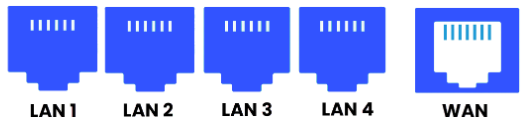
We use standard Ethernet to connect your router to our fiber network. That means many third-party routers will work just fine, as long as they have the right physical ports.
Your router should have a row of Ethernet ports, with one clearly labeled WAN, Internet, or marked with a globe icon. This is where your Ting fiber connection will plug in.
⚠️ Watch out for:
- Phone jacks (narrower than Ethernet, usually labeled DSL).
- A coaxial cable port (round, metal, and screw-in).
- A fiber ONT built into the router (often labeled SFP and may have a metal shield around the port).

.svg)
.svg)