
Modify or Cancel Your Installation Appointment
Need to change your installation plans?
No problem. Whether you're rescheduling or canceling, you can do it all from your Ting account. If you cancel your appointment and need to book another, schedule your installation when you're ready.
Modify your installation appointment
Need to reschedule? No worries.
1. Start from your Ting dashboard
Log in to your Ting account and locate your installation details.
- Sign in to your Ting account
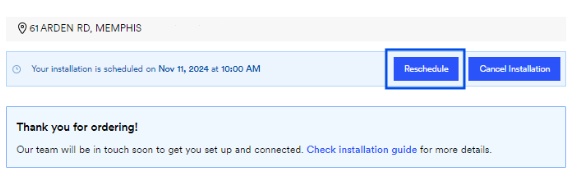
- On your Plan overview, look for your Installation information.
- Select Reschedule.
2. Set a new date
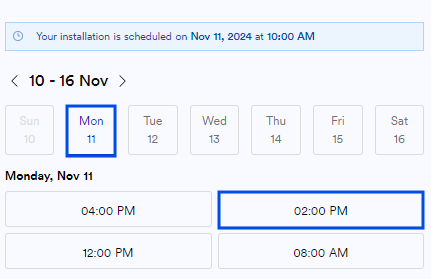
Pick a new date and time for your install.
Set a date and time
- Use the calendar to choose a date and time that works best for you.
- Don't see a date that works? Use the arrow (>) to scroll forward through more options.
Installation Contact
- Add the person that will be home for the entire installation.
- They must be 18 or older.
- Select Submit. You're all set!
Cancel your installation appointment
Not ready to schedule yet? You can cancel your installation appointment and order in just a few steps.
1. Start from your Ting dashboard
Log in to your Ting account and locate your installation details.
- Sign in to your Ting account
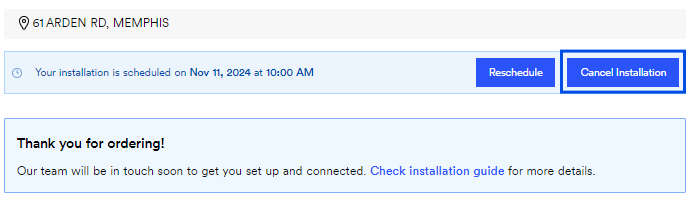
- On your Plan overview, look for your Installation information.
- Select Cancel Installation.
2. Confirm your selection
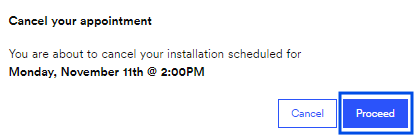
Confirm that you want to cancel.
- In the pop-up, select Proceed.
- Changed your mind? Select Cancel.
3. Cancelation confirmation
Once your cancellation goes through, you’ll see:
- A temporary banner confirming your appointment has been queued for cancellation
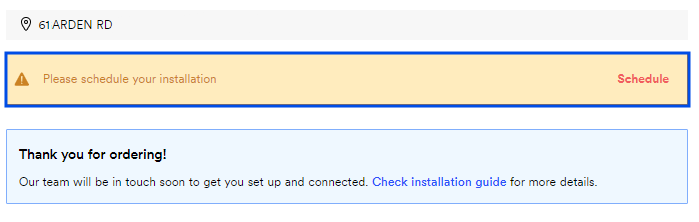
- Your My Ting Internet section will prompt you to schedule your installation.

.svg)
.svg)