
Ordering Ting Internet and Mobile
Want to bundle Ting Internet and Mobile for $99/month? Let’s get started.
ℹ️ Already have Ting Internet? Sign in to your account, follow the steps below and select the $10 mobile plan.
What you’ll need
- A Ting SIM card.
- A compatible phone or an eSIM-capable device.
If you're activating a new phone, set up your phone before you begin.
Placing your order
1. Sign up for Ting Internet
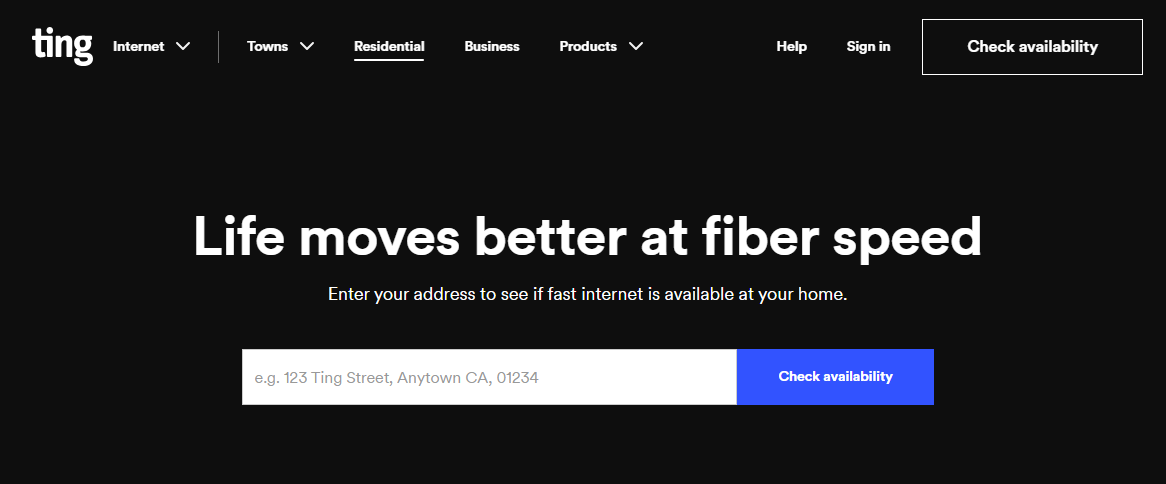
Check if Ting is available in your area.
- Head over to Ting.com and enter your home address.
- Click Check availability
2. Confirm availability
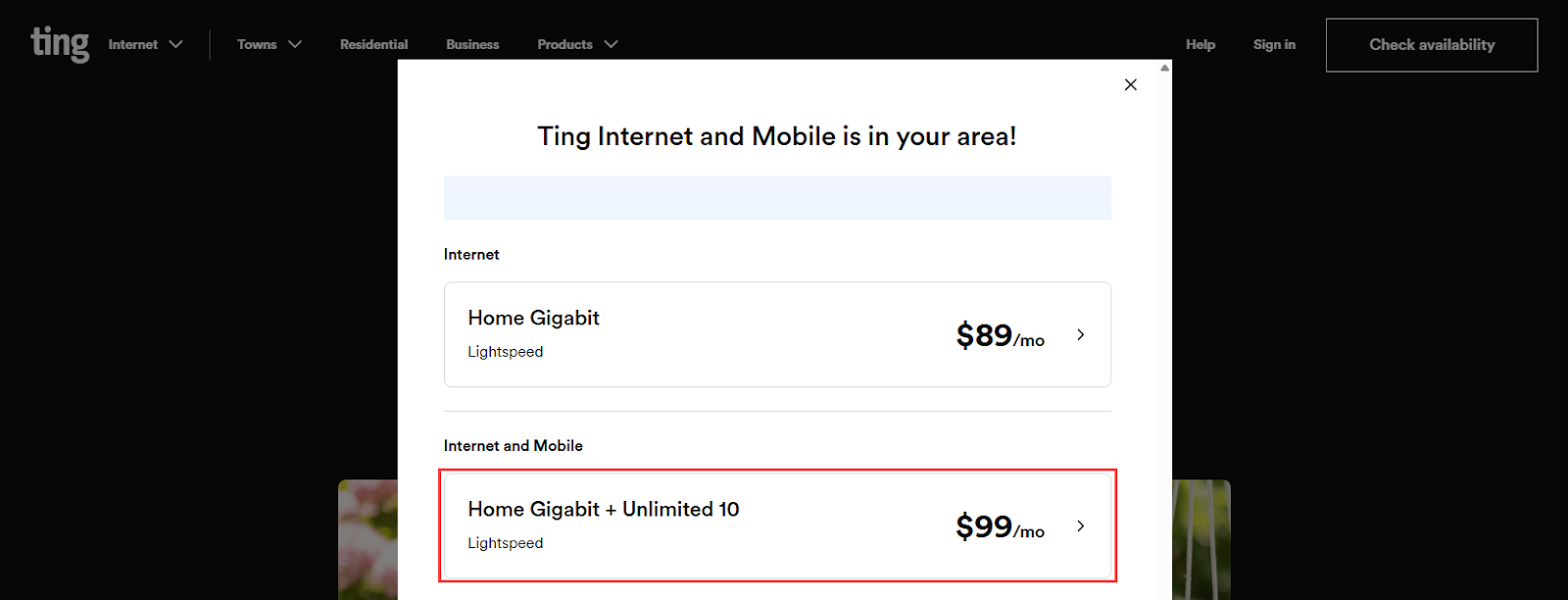
A pop-up will let you know if your home is fiber-ready.
- If your home is ready for service: Click a plan to start building your order.
- Select the Home Gigabit + Unlimited 10 for $99 to sign up for the Ting Unlimited combo
- If you are already an internet customer, select the $10 plan option.
- If we’re not quite there yet: Join the Ting Waitlist and we’ll keep you in the loop when we’re in your area.
3. Build your internet plan
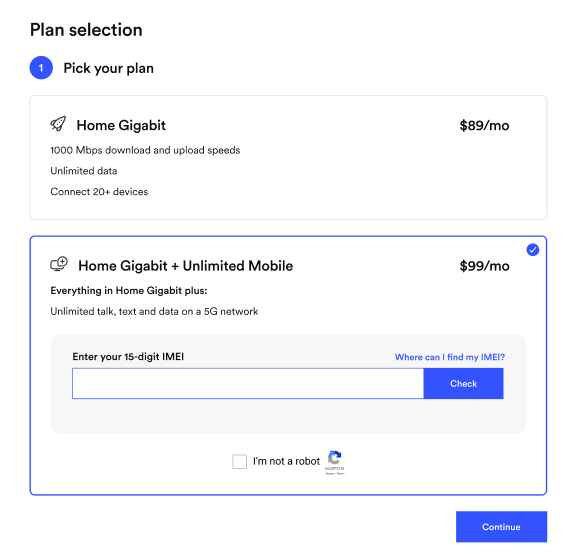
- Select the Home Gigabit + Unlimited 10 for $99
- Enter the IMEI of your phone and select Check
- If your phone is compatible, select Continue
4. Choose your Wi-Fi solution
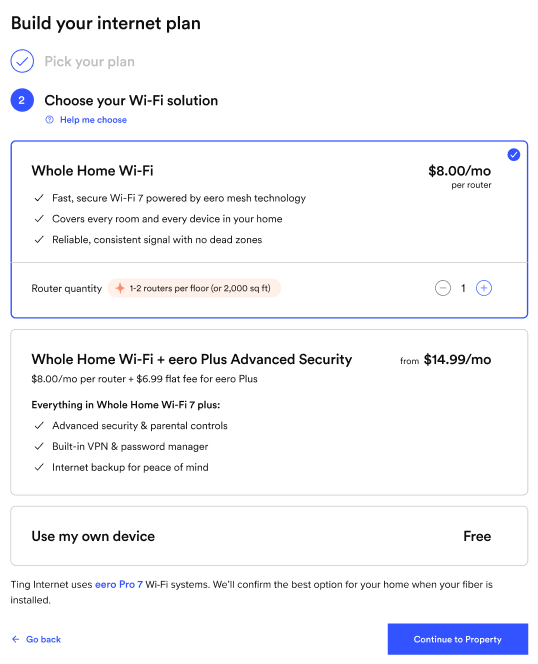
- Want to rent a router? Select Whole Home Wi-Fi and tell us how many units you need.
- Using your own router? Select Use my own device.
- Click Continue to move to the next step.
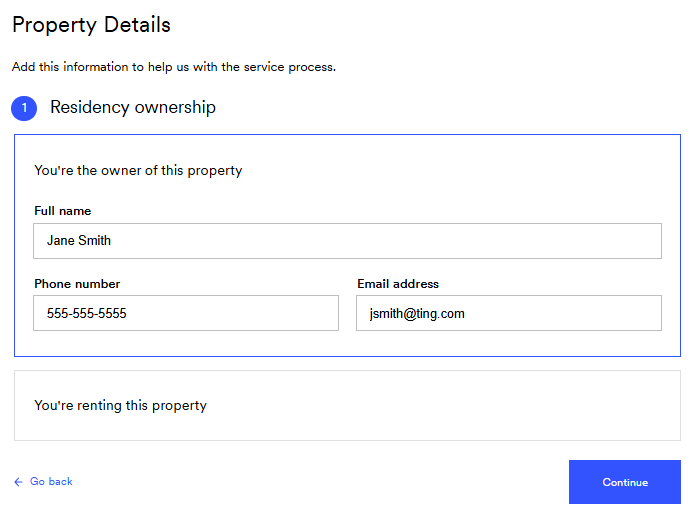
5. Tell us about your property
We’ll ask a few quick questions to prepare for installation.
- If you own the property, enter your name, phone number and email.
- If you rent, select You’re renting this property and enter your landlord’s contact information. We need the property owner’s permission before installing fiber.
- Select Continue.
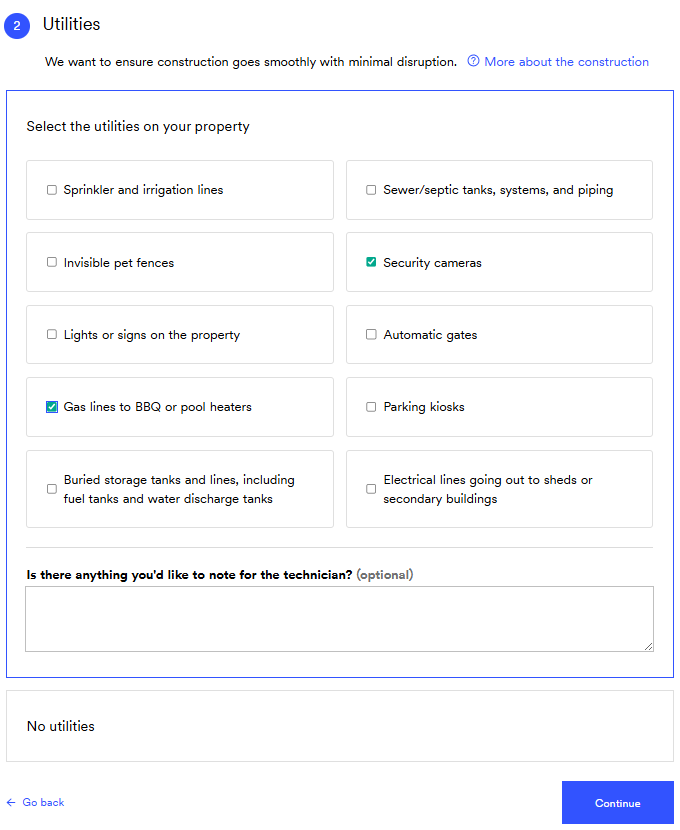
6. Identify utilities
- You’ll be asked to check off any private utilities on your property (Like irrigation lines or invisible fences).
- Marking the utilities helps us avoid damage or disruption during installation.
- Select Continue.
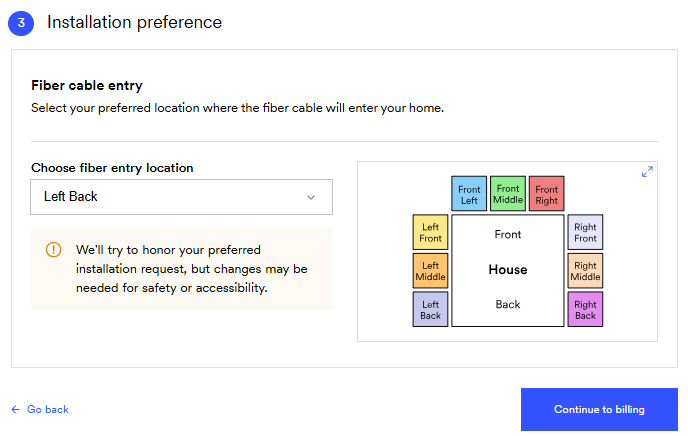
7. Set your installation preferences
Let us know where you'd like the fiber to enter your home.
ℹ️ We'll do our best to follow your preference, but may need to adjust for safety or accessibility.
- Use the dropdown menu to select your preferred fiber entry point (the area where the line should come into your home).
- Select Continue to billing to move on.
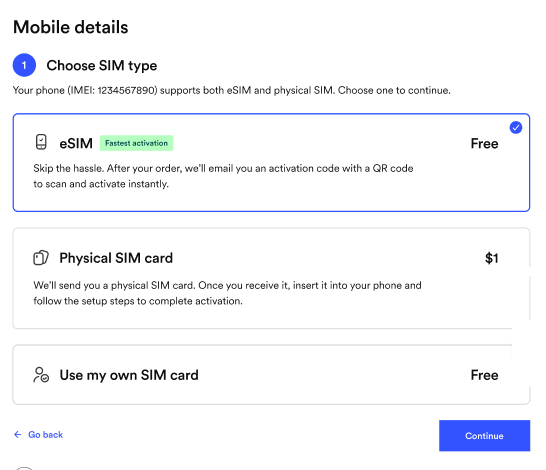
8. Choose SIM Type
- If your phone is eSIM compatible, you can select the option for eSIM. We'll send you an email with the details after activation.
- If you prefer using a physical SIM:
- Select Physical SIM card to order a new SIM. We'll mail it to you.
- You’ll be asked to enter your shipping details in the next step.
- Already have a Ting SIM? Select Use my own SIM card.
- We'll ask for the SIM number in the next step.
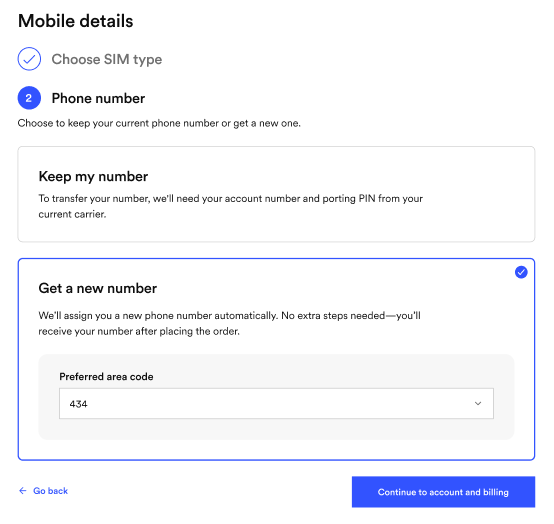
9. Select your number option
- Have a number you want to transfer to Ting? Select Keep my number.
- Enter your current phone number.
- You’ll be asked to enter your account number and PIN from your current carrier along with your service address.
- Looking for a new number? Select Get a new number.
- Select your area code if prompted.
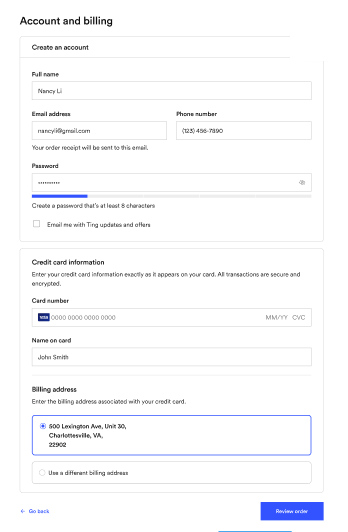
9. Create an account or sign in
- Almost there! Create your account and add your payment details or sign in to an existing account.
- Enter your credit card information.
- You will need to do this for both internet and mobile service.
- You will need to do this for both internet and mobile service.
- Select Review order to continue.
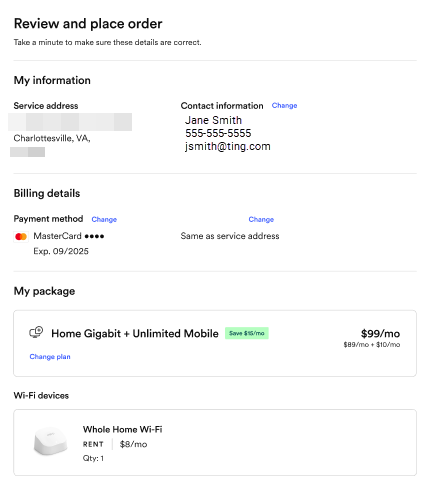
10. Review your order
Double-check that everything looks right before you place your order.
- If something’s off, click ← Back to payment details to make changes.
- Agree to Ting’s Terms of Service and Privacy Policy.
- Select Place order and schedule installation.
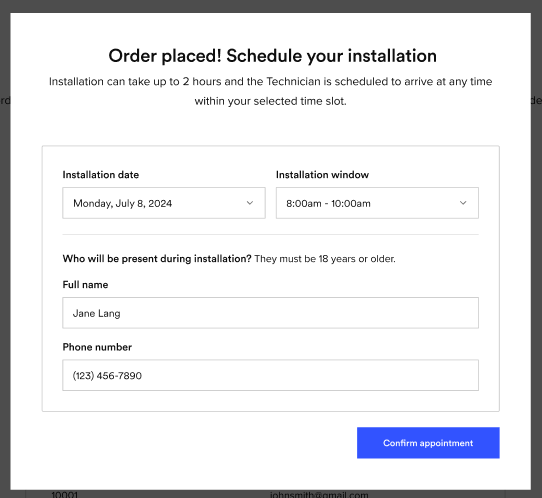
11. Choose your perfect time
Now for the fun part! Schedule your install.
Set a date and time
- Use the calendar to choose a date and time that works best for you.
- Appointments last about 90 minutes.
- Don't see a date that works? Use the arrow (>) to scroll forward through more options.
Installation Contact
- Select the person that will be home for the entire installation.
- They must be 18 or older.
12. Confirm your installation appointment
You’ll see a summary of your scheduled appointment.
- Review the details one last time.
- Click Confirm to lock it in.
- We'll also email you a confirmation with everything you need to know.
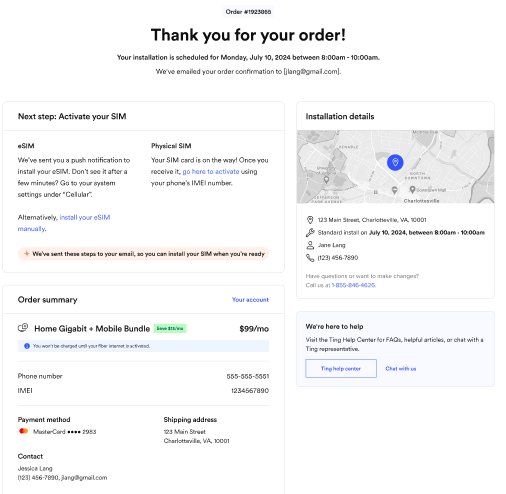
12. Complete your phone activation
If you’re transferring your number to Ting, you’ll get a confirmation email once the transfer is complete. This can take up to 24 hours if your information is correct. Wait for that email before completing the steps below.
Activated a new number? You can complete the steps below immediately after completing your order.
- Activating a physical SIM? Simply turn your phone off, insert your SIM card and turn it back on to complete activation.
- Being sent a physical SIM? Once it arrives, just follow theses instructions to get started.
- Using eSIM? Your phone may automatically download it for you. Just turn your phone off and on.
- Don’t see it? Follow the steps in your email to finish activating your eSIM.

.svg)
.svg)