
Your Ting mobile account overview
Whether you’re reviewing your bills or managing device features, everything is right at your fingertips. No digging, no guesswork—just simple, straightforward control of your account.
ℹ️ Depending on your account, these steps may look a little different. If what you see doesn’t match this article, follow the steps in the version that matches your account experience.
Logging Into your Account
Go to ting.com and select Sign in.
Enter the email address you used to create your Ting account and your password.
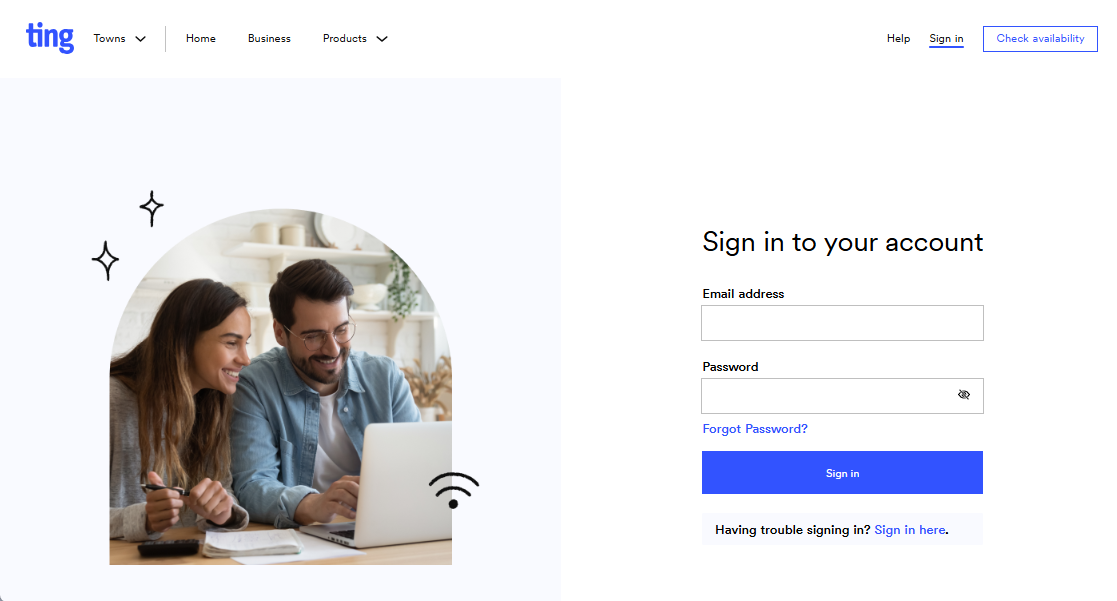
📌: Forgot your password? Follow the steps to Reset your password to create a new one.
Updating your Account Details
Account Settings
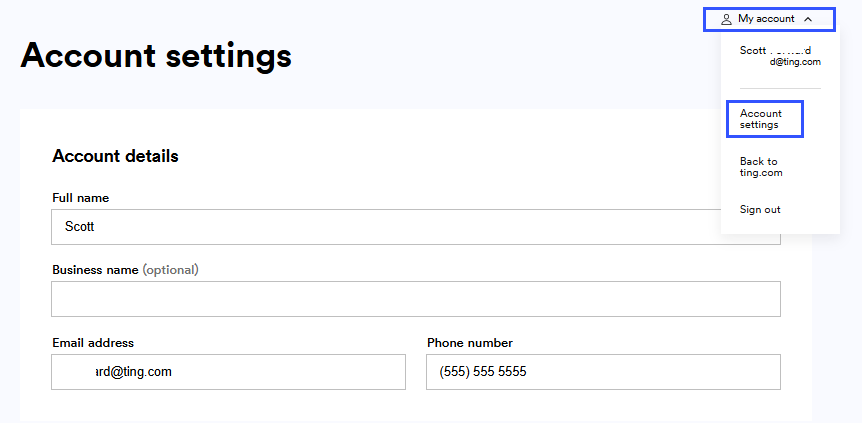
You can find your account settings from your dashboard.
- Select My account in the top right
- Choose Account settings
In account settings, you can:
- Update the name on your account
- Change your email address
- Update your contact phone number
- Change your Ting password
- Set up 2FA
- Set you email preferences
Update your Billing
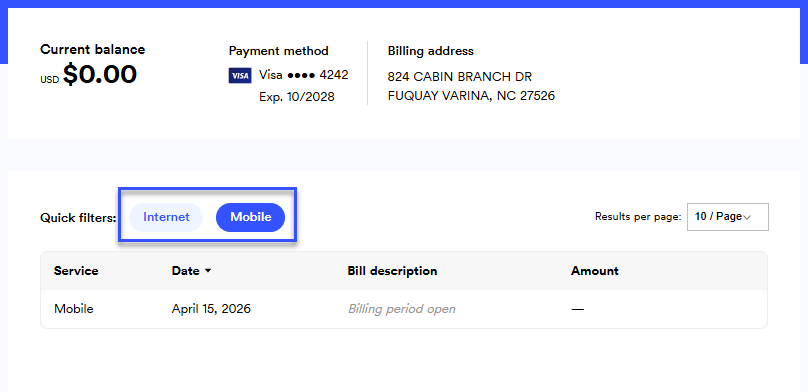
Select Billing from the left-hand menu to update your payment information.
Have both Mobile and Internet? Each service has its own card on file, so make sure to click each tab to ensure both are updated.
Overview of your Mobile Account
To head back to your Mobile account dashboard, select Mobile on the left hand side.
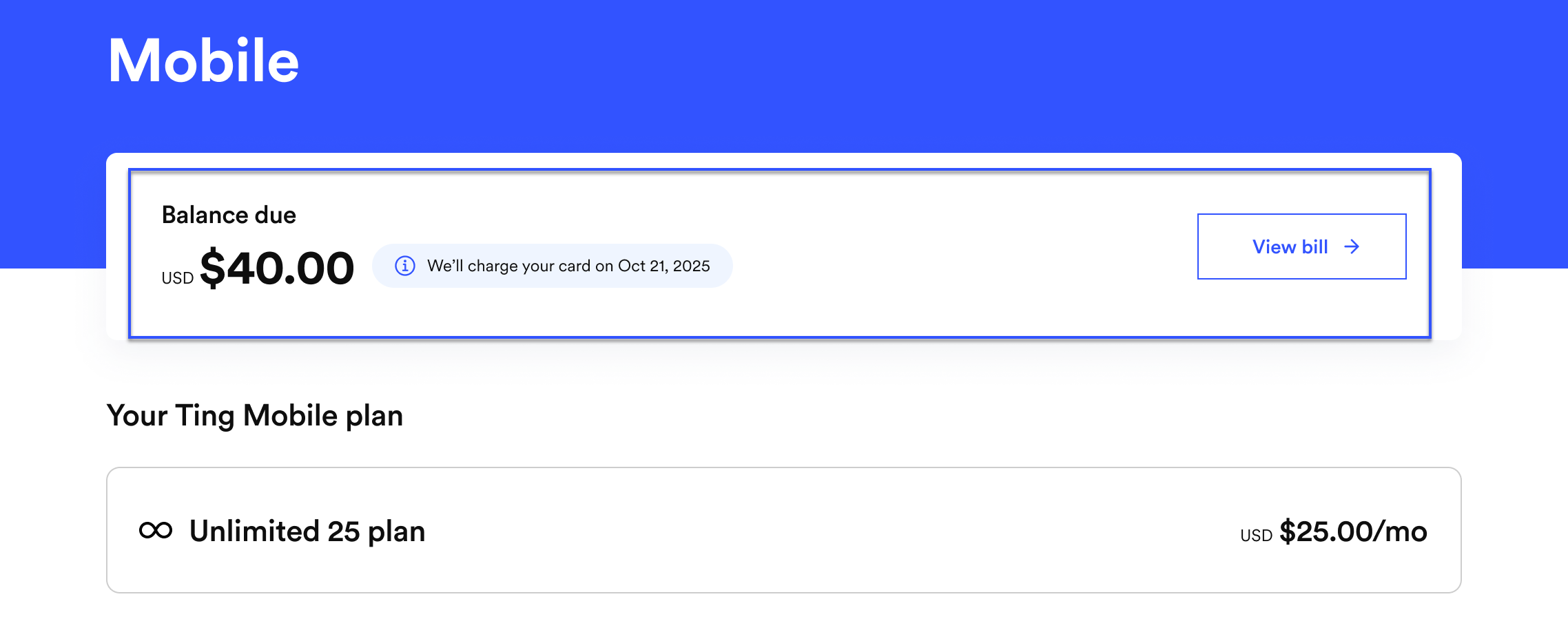
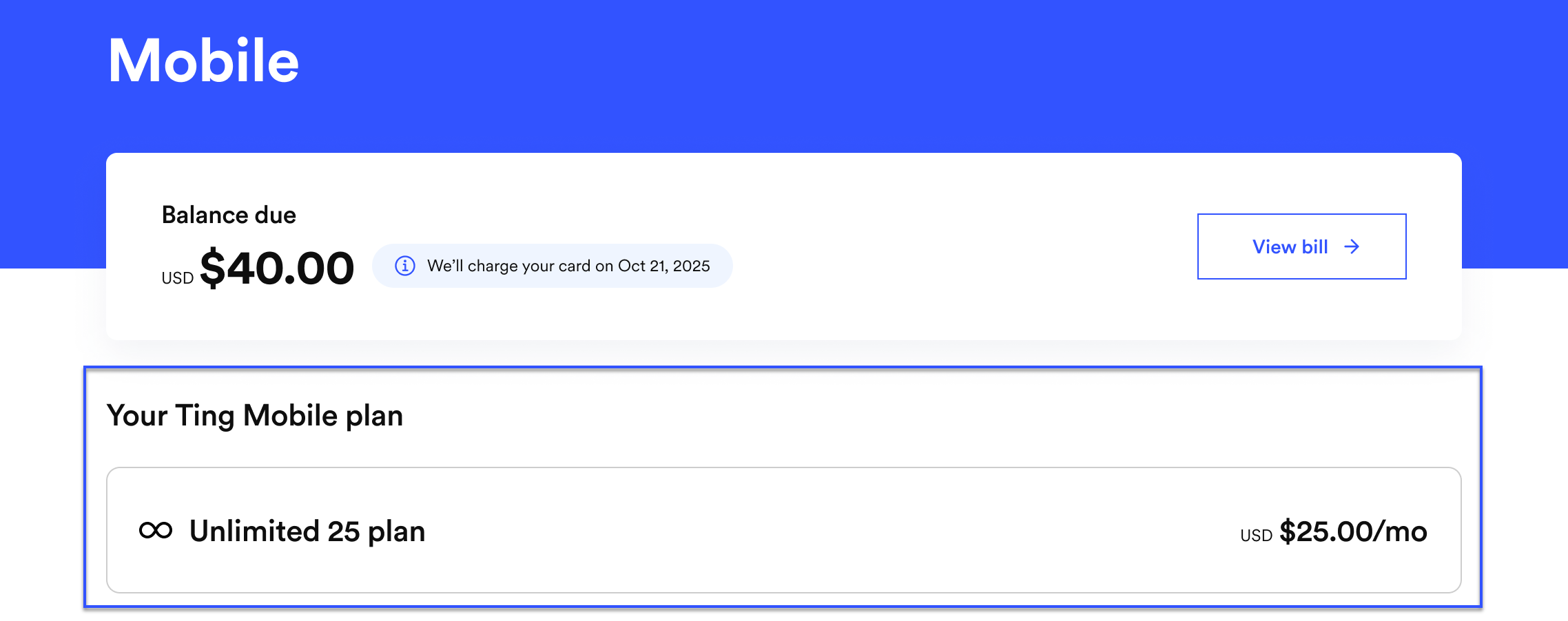
Balance due
The Balance due section shows your current bill before taxes are added.
Next to your balance, you’ll also see the date your payment will be processed.
Want more details? Select View bill to see a full breakdown of your charges.
Viewing your bill
will add photos once I can get into that section
You Ting Mobile Plan
This section shows the current plan on your Ting Mobile account.
Devices
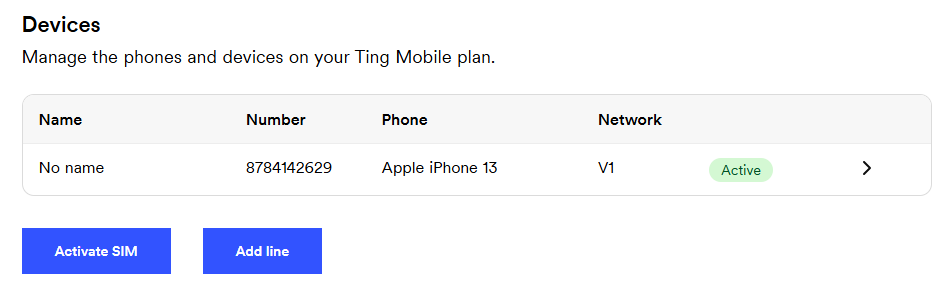
This section shows the devices and phone numbers connected to your Ting account.
Select a phone number to open its settings page. From there, you can manage how that phone is used.
Select Add a line to activate another device. You can:
- Bring an existing phone number to Ting from another carrier.
- Move your existing Ting number to a new phone.
- Get a new phone number.
Devices Settings
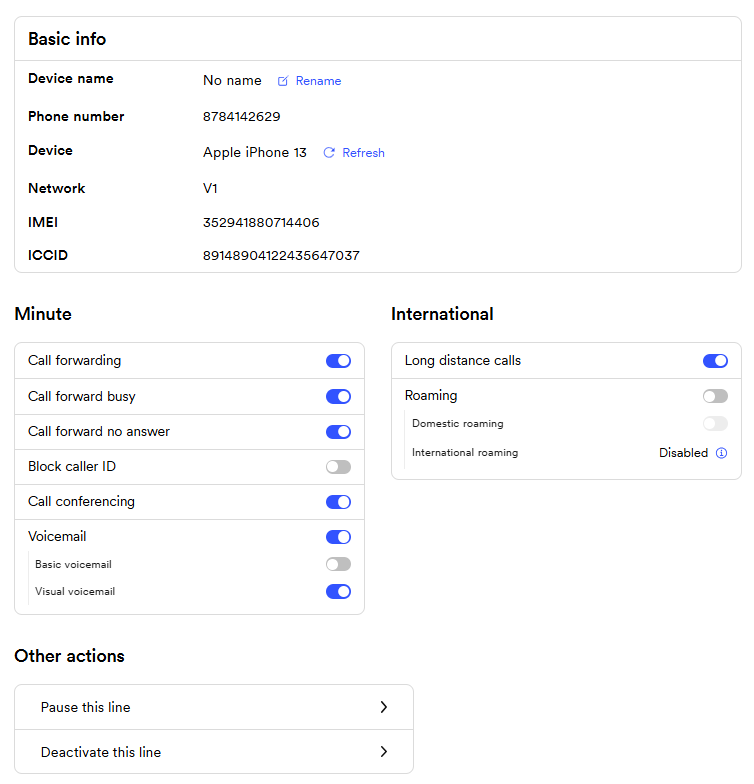
When you select a phone number, you can customize your Ting service.
Here’s what you can do:
- Add or update device nicknames
- Suspend or deactivate devices
- View your IMEI and ICCID (SIM card number)
- Update call settings like call forwarding, blocking, call waiting and voicemail
- Manage long-distance calling and international roaming for Canada and Mexico
Usage Alerts
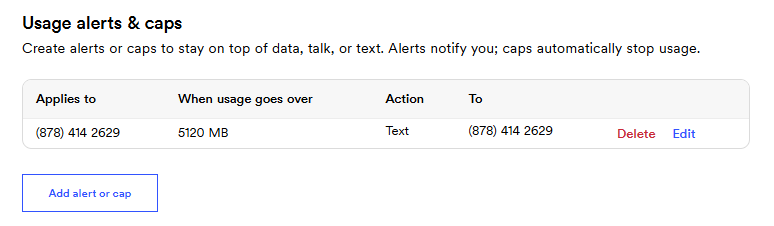
Usage alerts let you know when your data reaches a limit you choose.
You can receive alerts by text message, email or both. This is especially useful if you’re using:
- The Flex plan, or
- An unlimited plan with a specific data allotment
Alerts help you keep an eye on your usage and avoid surprises.
📌 Heads up: If you’re using a V1 SIM, turning off data in your phone settings may not fully disable data. Usage alerts can help you monitor activity.
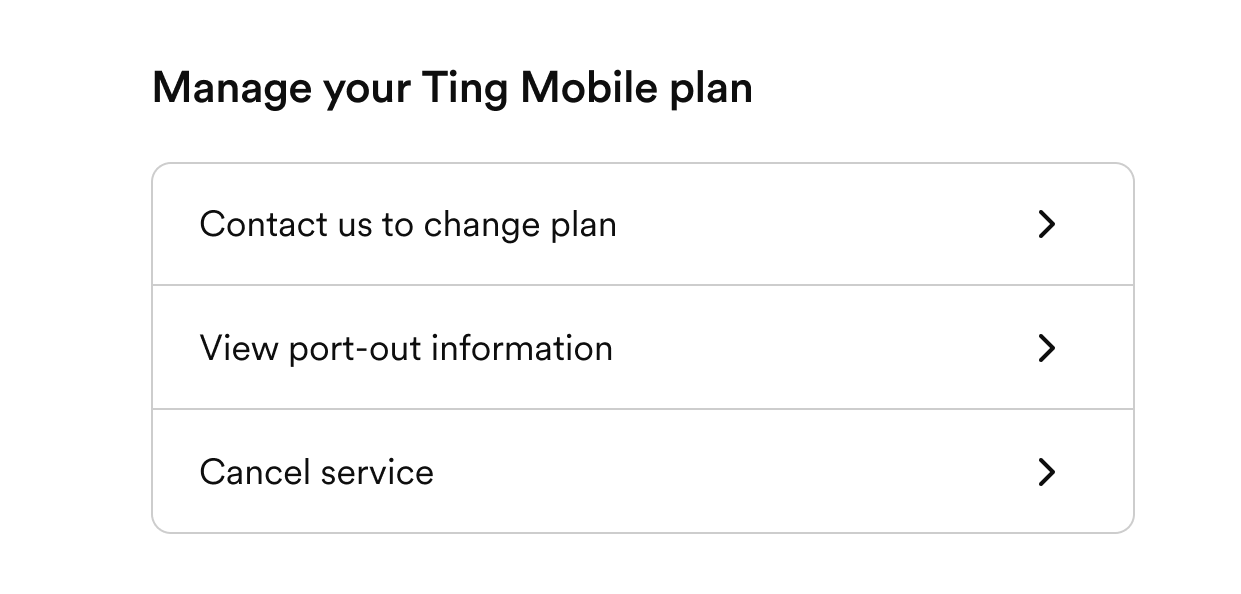
Manage your Ting Mobile Plan
Contact to change plan
Want to change your mobile plan? Give us a call and we’ll help you switch.
Plan changes take effect on the first day of your next billing cycle. If you call mid-cycle, we’ll schedule the change so it starts when your next cycle begins.
View port-out information
If you plan to move your number to another provider, select View port-out information.
This will show:
- Your Ting account number
- Your transfer PIN
Give this information to your new carrier to start the transfer.
Keep your Ting account active during the process. Your number must stay active until the transfer is complete.
Cancel service
To cancel service, select Cancel service.
All phone numbers on your account will deactivate within 48 hours.
If you plan to transfer your number to another provider, wait until the transfer is complete before canceling your Ting account.

.svg)
.svg)