
How to transfer your Ting number to an eSIM
Ready to make the switch to eSIM?
Great choice! Swapping your Ting SIM for a Ting eSIM is easy and helps you ditch the physical card (or keep it as a memento). Want to activate a new number on an eSIM instead? Learn how to activate a new number on Ting.
If you're activating a new phone, set up your phone before you begin.
Check for eSIM compatibility
Not sure if your device supports eSIM? It’s quick to find out.
iPhone
- Open Settings.
- Tap Cellular.
- Select Add eSIM.
Android
Option 1:
- Open Settings.
- Go to Connections
- Select SIM Manager.
- Tap Add eSIM.
Option 2:
- Open Settings.
- Go to Network & Internet
- Select SIMs.
- Tap + Add SIM.
Activate a Ting eSIM
1. Log in to your Ting account
Head to your Ting dashboard and sign in.
2. Go to Device Settings
Navigate to Device Settings in your account and select Activate a device.

3. Enter your phone’s IMEI
Dial *#06# on your phone to find your IMEI, then enter it into the field and click Check.
Need a hand finding your IMEI?

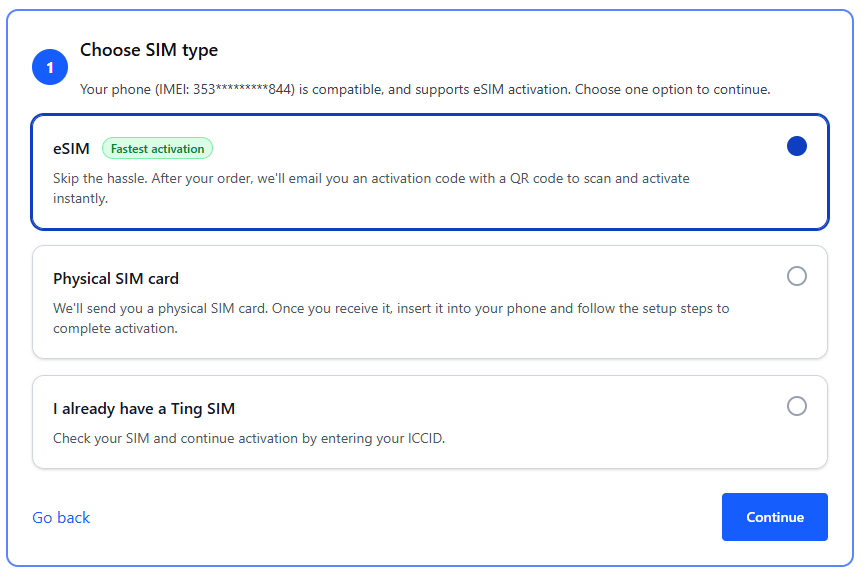
4. Get your eSIM
Select Get an eSIM then Continue.
5. Check your coverage
Confirm your coverage address and update if necessary. Click Continue to plan selection.

6. Move your number
Select Move a number. From the dropdown menu, choose the number you want to transfer. Click Continue to billing.

7. Update billing information
Review and update your billing details if needed, then select Review my order.

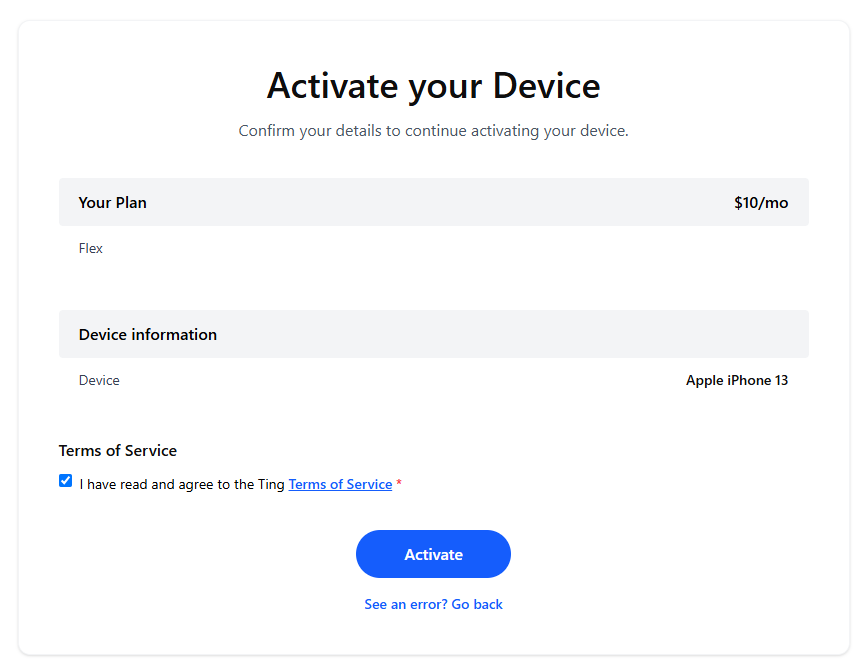
8. Confirm your activation
Review the activation summary. If all looks good, click Activate.
9. Activate your eSIM
- Your eSIM may download automatically on your device– Check for a push notification.
- Check your email for a QR code. Follow the steps in the email to scan the QR code and complete your eSIM setup.
- Having trouble completing your activation? Troubleshoot your eSIM activation.
10. Complete setup on your phone
Follow the prompts on your device to finalize activation.

.svg)
.svg)